KI-Beratung Beta

Gutscheinbedingungen

Gültig bis 21.10.2026 | Gültig für nicht preisgebundene fremdsprachige Bücher | Einzelne Artikel können ausgeschlossen sein | Online auf thalia.de und in der Thalia App einlösbar | Click & Collect nur mit Online-Zahlung (Paypal/Kreditkarte) vorab | Nicht kombinierbar mit anderen Gutscheinen oder Preisaktionen | Nur einmal pro Einkauf einlösbar | Gutschein wird auf max. 500€ Bestellwert angerechnet | Keine Barauszahlung | Nicht gültig für Versandkosten und Services

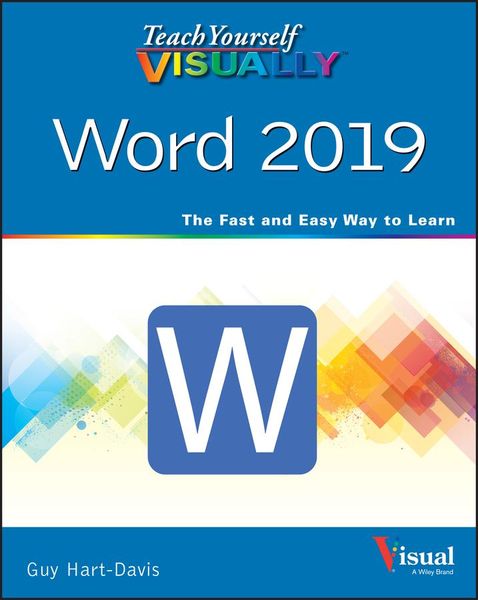
Produktbild: Teach Yourself VISUALLY Word 2019

Teach Yourself VISUALLY Word 2019

27,99 €

inkl. gesetzl. MwSt., Versandkostenfrei


Beschreibung

Produktdetails

Einband

Taschenbuch

Erscheinungsdatum

28.07.2020

Verlag

John Wiley & Sons Inc

Seitenzahl

352

Maße (L/B/H)

18,7/23,4/1,9 cm

Gewicht

700 g

Auflage

1. Auflage

Sprache

Englisch

ISBN

978-1-119-72448-3

Beschreibung

Produktdetails

Einband

Taschenbuch

Erscheinungsdatum

28.07.2020

Verlag

John Wiley & Sons Inc

Seitenzahl

352

Maße (L/B/H)

18,7/23,4/1,9 cm

Gewicht

700 g

Auflage

1. Auflage

Sprache

Englisch

ISBN

978-1-119-72448-3

Herstelleradresse

Libri GmbH
Europaallee 1
36244 Bad Hersfeld
DE

Email: gpsr@libri.de

Ein neues Kapitel für Ihre Bücher

Ein neues Kapitel für Ihre Bücher

Schenken Sie Ihren alten Schätzen ein zweites Leben und erhalten Sie dafür eine Thalia Geschenkkarte.

Jetzt verkaufen
Jetzt verkaufen

Noch keine Bewertungen vorhanden

Verfassen Sie die erste Bewertung zu diesem Artikel

Helfen Sie anderen Kundinnen und Kunden durch Ihre Meinung.

Kundinnen und Kunden meinen

Bewertungen (0)

Die Leseprobe wird geladen.
  • Produktbild: Teach Yourself VISUALLY Word 2019
  • Chapter 1 Getting Started with Word
     
    Open Word and Use the Start Screen 4
     
    Understanding Office and the Cloud 6
     
    Explore the Word Window 8
     
    Sign In to Your Account 9
     
    Work with Backstage View 10
     
    Change the Color Scheme and Background 12
     
    Locate Commands on the Ribbon 14
     
    Give Commands Using the Keyboard and Mouse 16
     
    Using Word on Tablets and Phones 18
     
    Using Word in OneDrive and Microsoft Teams 20
     
    Work with the Mini Toolbar and Context Menus 22
     
    Enter Text in a Document 24
     
    Move the Insertion Point Around a Document 26
     
    Switch Document Views 28
     
    Understanding Document Views 29
     
    Work with the Navigation Pane 30
     
    Using Focus Mode 32
     
    Using Immersive Reader 33
     
    Chapter 2 Creating and Saving Documents
     
    Start a New Document 36
     
    Save a Document to Your Computer 38
     
    Save a Document to the Cloud 40
     
    Recover an Unsaved Document 42
     
    Save a Document in a Different Format 44
     
    Save a Document in PDF or XPS Format 45
     
    Set Options for Saving Documents 46
     
    Open a Word Document 48
     
    Open a Document That Uses a Different Format 50
     
    Open a Document from the Cloud 52
     
    Switch Between Open Documents 54
     
    Compare Two Documents Side by Side 56
     
    Chapter 3 Entering Text in Documents
     
    Insert and Add Text 60
     
    Insert Symbols and Special Characters 62
     
    Create a Hyperlink 64
     
    Delete Text 66
     
    Insert Blank Lines 68
     
    Undo, Redo, and Repeat Changes 69
     
    Select Text 70
     
    Mark and Find Your Place with Bookmarks 72
     
    Move or Copy Text 74
     
    Share Text Between Documents 76
     
    Move or Copy Several Selections 78
     
    Take Advantage of Paste Options 80
     
    Chapter 4 Editing and Proofing Text
     
    Work in Read Mode View 84
     
    Zoom In or Out 88
     
    Translate Text 89
     
    Set Options for Additional Actions 90
     
    Using Additional Actions 91
     
    Search for Text 92
     
    Replace Text or Other Items 94
     
    Count Words in a Document 96
     
    Automatically Correct Mistakes 98
     
    Automatically Insert Frequently Used Text 100
     
    Check Spelling and Grammar 102
     
    Find Synonyms, Antonyms, and Definitions 104
     
    Chapter 5 Formatting Text
     
    Understanding How Word's Formatting Works 108
     
    Change the Font 110
     
    Change the Font Size 111
     
    Emphasize Information with Bold, Italic, or Underline 112
     
    Create Superscripts and Subscripts 113
     
    Change Text Case 114
     
    Change Text Color 115
     
    Apply Text Effects 116
     
    Apply a Font Style Set 117
     
    Apply Highlighting to Text 118
     
    Apply Strikethrough to Text 119
     
    Copy and Paste Text Formatting 120
     
    Remove Text Formatting 121
     
    Set the Default Font for All New Documents 122
     
    Chapter 6 Formatting Paragraphs
     
    Change Text Alignment 126
     
    Set Line Spacing Within a Paragraph 127
     
    Set Line Spacing Between Paragraphs 128
     
    Create a Bulleted or Numbered List 130
     
    Display Formatting Marks 132
     
    Hide or Display the Ruler 133
     
    Indent Paragraphs 134
     
    Set and Use Tabs 136
     
    Add a Paragraph Border 140
     
    Review and Change Formatting 142
     
    Compare Formatting 144
     
    Apply Formatting Using Styles 146
     
    Switch Styles 148
     
    Save Formatting in a Style 150
     
    Expand or Collapse Document Content 152
     <