KI-Beratung Beta

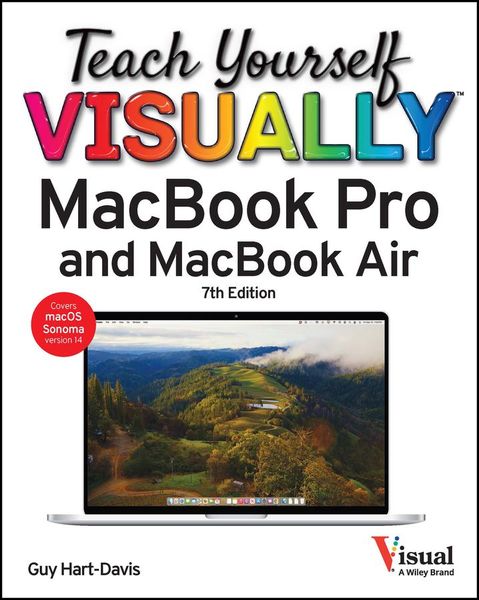
Produktbild: Teach Yourself Visually Macbook Pro and Macbook Air

Teach Yourself Visually Macbook Pro and Macbook Air

25,99 €

inkl. gesetzl. MwSt., Versandkostenfrei


Beschreibung

Produktdetails

Einband

Taschenbuch

Erscheinungsdatum

28.02.2024

Verlag

John Wiley & Sons

Seitenzahl

368

Maße (L/B/H)

23,3/18,3/2,3 cm

Gewicht

832 g

Auflage

7th edition

Sprache

Englisch

ISBN

978-1-394-25132-2

Beschreibung

Produktdetails

Einband

Taschenbuch

Erscheinungsdatum

28.02.2024

Verlag

John Wiley & Sons

Seitenzahl

368

Maße (L/B/H)

23,3/18,3/2,3 cm

Gewicht

832 g

Auflage

7th edition

Sprache

Englisch

ISBN

978-1-394-25132-2

EU-Ansprechpartner

Kolibri 360 GmbH
Ettore-Bugatti-Straße 6-14
51149 Köln
DE
produktsicherheit@kolibri360.de

Herstelleradresse

Wiley & Sons
1 Oldlands Way
PO22 9NQ Bognor Regis
GB
trade@wiley.com

Ein neues Kapitel für Ihre Bücher

Ein neues Kapitel für Ihre Bücher

Schenken Sie Ihren alten Schätzen ein zweites Leben und erhalten Sie dafür eine Thalia Geschenkkarte.

Jetzt verkaufen
Jetzt verkaufen

Noch keine Bewertungen vorhanden

Verfassen Sie die erste Bewertung zu diesem Artikel

Helfen Sie anderen Kundinnen und Kunden durch Ihre Meinung.

Kundinnen und Kunden meinen

Bewertungen (0)

Die Leseprobe wird geladen.
  • Produktbild: Teach Yourself Visually Macbook Pro and Macbook Air
  • Chapter 1 Getting Started with Your MacBook
     
    Understanding the MacBook Pro and MacBook Air 4
     
    Set Up Your MacBook 8
     
    Start Your MacBook and Log In 12
     
    Explore the macOS Desktop 14
     
    Point and Click with the Trackpad 18
     
    Connect to a Wireless Network 20
     
    Give Commands 22
     
    Open, Close, and Manage Windows 24
     
    Using Control Center 26
     
    Using Notifications 28
     
    Add Widgets to Your Desktop 30
     
    Put Your MacBook to Sleep and Wake It Up 32
     
    Log Out, Shut Down, and Resume 33
     
    Chapter 2 Configuring Your MacBook
     
    Change the Wallpaper 36
     
    Set Up a Screen Saver 38
     
    Configure Battery and Sleep Settings 40
     
    Customize the Dock 42
     
    Configure Control Center and the Menu Bar 44
     
    Add or Remove Desktop Spaces 46
     
    Create Hot Corners to Control Screen Display 48
     
    Make the Screen Easier to See 50
     
    Configure the Appearance, Accent, and Highlight 54
     
    Configure the Keyboard 56
     
    Configure the Trackpad or Other Pointing Device 58
     
    Configure iCloud Settings 60
     
    Add a Second Display 62
     
    Using an Apple TV and HDTV as an Extra Display 64
     
    Using an iPad as an Extra Display and Input Device 66
     
    Connect External Devices 68
     
    Explore Other Important Settings 70
     
    Chapter 3 Sharing Your MacBook with Others
     
    Create a User Account 74
     
    Configure Your MacBook for Multiple Users 76
     
    Share Your MacBook with Fast User Switching 78
     
    Set Up Family Sharing 80
     
    Turn On Screen Time for a Child 84
     
    Configure Downtime 88
     
    Set Time Limits for Apps and Websites 90
     
    Make Apps Always Available to a User 92
     
    Apply Content and Privacy Restrictions 94
     
    Review a User's Actions 100
     
    Chapter 4 Running Apps
     
    Open an App and Quit It 104
     
    Install an App 106
     
    Run an App Full Screen 108
     
    Set Apps to Run Automatically at Login 110
     
    Using Split View 112
     
    Switch Quickly Among Apps 114
     
    Switch Apps Using Mission Control 116
     
    Enable and Configure Stage Manager 118
     
    Switch Apps Using Stage Manager 120
     
    Set Up Dictation and Spoken Content 122
     
    Using Dictation and Spoken Content 124
     
    Configure and Invoke Siri 126
     
    Perform Tasks with Siri 128
     
    Remove Apps 130
     
    Identify Problem Apps 132
     
    Force a Crashed App to Quit 134
     
    Revert to an Earlier Version of a Document 136
     
    Chapter 5 Managing Your Files and Folders
     
    Explore Your MacBook's File System 140
     
    Using the Finder's Views 142
     
    Work with Finder Tabs 144
     
    View a File with Quick Look 146
     
    Organize Your Desktop Files with Stacks 148
     
    Search for a File or Folder 150
     
    Create a New Folder 152
     
    Rename a File or Folder 153
     
    Copy a File 154
     
    Move a File 156
     
    View the Information About a File or Folder 158
     
    Organize Your Files with Tags 160
     
    Work with Zip Files 162
     
    Using the Trash 164
     
    Configure Finder Settings 166
     
    Customize the Finder Toolbar 168
     
    Customize the Finder Sidebar 169
     
    Chapter 6 Surfing the Web
     
    Open Safari and Customize Your Start Page 172
     
    Open a Web Page 174
     
    Follow a Link to a Web Page 175
     
    Open Several Web Pages at Once 176
     
    Navigate Among Web Pages 178
     
    Return to a Recently Visited Page 180
     
    Play Music and Videos on the Web 182
    &nbs