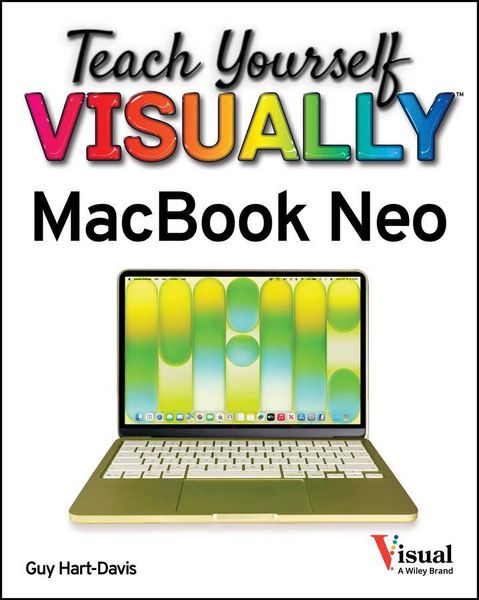
Teach Yourself VISUALLY MacBook Neo
-
- Taschenbuch ausgewählt
- eBook
-
Sprache:Englisch
23,99 €
inkl. gesetzl. MwSt.,
Beschreibung
Produktdetails
Einband
Taschenbuch
Erscheinungsdatum
29.06.2026
Verlag
WileySeitenzahl
208
Maße (L/B/H)
23,5/18,9/1,5 cm
Gewicht
444 g
Sprache
Englisch
ISBN
978-1-394-45297-2
The visual learner's guide to getting up and running with your Apple laptop
Teach Yourself VISUALLY MacBook Neo covers all the vital information you need to start working on your MacBook Neo. With this highly-illustrated and easy-to-follow guide, you'll learn to navigate the macOS interface like a pro; customize your desktop with the widgets you need; and get your Neo working with iCloud, your iPhone, and your iPad. This book's graphical, step-by-step instructions walk you through everything from installation to organizing your life and enjoying multimedia, helping you to get the most out of the investment you've made in your MacBook.
This fully updated edition helps you become a MacBook Neo power user and exploit the features in macOS, Apple's state-of-the-art operating system, and the apps that come with it. If you prefer to learn visually, this is the book you need.
- Get up to speed with the latest macOS version and its new features
- Perform everyday tasks quickly and easily
- Customize settings to make macOS and its apps work the way you prefer
- Communicate via audio and video with FaceTime, via instant messaging with Messages, and via email with Mail
- Organize your life with Calendar, Contacts, Reminders, Notes, and Maps
- Make the most of your iCloud account
Instead of confusing tech-speak and vague instructions, this guide is packed with screenshots, easy-to-follow instructions, and a practical sensibility. Grab Teach Yourself VISUALLY MacBook Neo and explore all that your Neo can do.
Ein neues Kapitel für Ihre Bücher
Ein neues Kapitel für Ihre Bücher
Schenken Sie Ihren alten Schätzen ein zweites Leben und erhalten dafür eine Thalia Geschenkkarte.
Noch keine Bewertungen vorhanden
Verfassen Sie die erste Bewertung zu diesem Artikel
Helfen Sie anderen Kundinnen und Kunden durch Ihre Meinung.
Kurze Frage zu unserer Seite
Vielen Dank für Ihr Feedback
Wir nutzen Ihr Feedback, um unsere Produktseiten zu verbessern. Bitte haben Sie Verständnis, dass wir Ihnen keine Rückmeldung geben können. Falls Sie Kontakt mit uns aufnehmen möchten, können Sie sich aber gerne an unseren Kund*innenservice wenden.
zum Kundenservice